
Getting started
To get started with Hyperview, you need both a Hyperview backend server (that responds to requests with HXML) and a mobile app to host the RN client. The Hyperview codebase includes a demo of the backend and mobile app to help you get started quickly.
Make sure yarn is installed on your system before continuing.
1. Clone the Github repository
> git clone https://github.com/instawork/hyperview
This repository contains:
- The React Native client code for Hyperview
- An XML server with examples of many Hyperview features
- A demo Expo project that can connect to the example XML server, or any other Hyperview endpoint.
- all of the reference docs on this website
2. Install dependencies
From the demo/ directory:
> yarn
Note: you only need to run this step once.
3. Run the demo server
From the demo/ directory:
> yarn server
This will start an HTTP server listening on port 8085. You can verify that the server works by visiting http://0.0.0.0:8085/hyperview/public/index.xml in a web browser.
The next step depends on whether you want to run the demo app in the iOS simulator, on an Android Virtual Device, or on a physical mobile device.
Running on the iOS simulator
From the demo/ directory:
> yarn ios
This will compile and install the demo app in the iOS simulator (first run takes a few minutes). It will then start the Expo development server to load the demo app.
Running on an Android Virtual Device
From the demo/ directory:
> yarn android
This will compile and install the demo app in an AVD (first run takes a few minutes). It will then start the Expo development server to load the demo app.
Running on a physical device
The demo uses a local Expo development build, not Expo Go. Plug in the device (Developer Mode on iOS, USB debugging on Android). Make sure your mobile device and development machine are connected to the same network.
From the demo/ directory on your development machine (replace X.X.X.X with the IP of your machine. This is needed in order for your physical device to be able to request the example XML files from your development machine.)
BASE_URL="http://X.X.X.X:8085" yarn ios --device
or
BASE_URL="http://X.X.X.X:8085" yarn android --device
This compiles Hyperview onto the device (first run takes a few minutes) and starts Metro. Metro displays a QR code in the terminal.
- On your iOS device, open the Camera app and point it at the QR code in the terminal. The Camera app should show an "Open in Hyperview" notification. Tap this notification.
- On your Android device, open Hyperview and type
http://X.X.X.X:8081in the development launcher. Google Camera will not open the QR code.
4. You're all set!
Whether you're using a physical device or simulator, you should now see a Hyperview screen rendered from the example server:
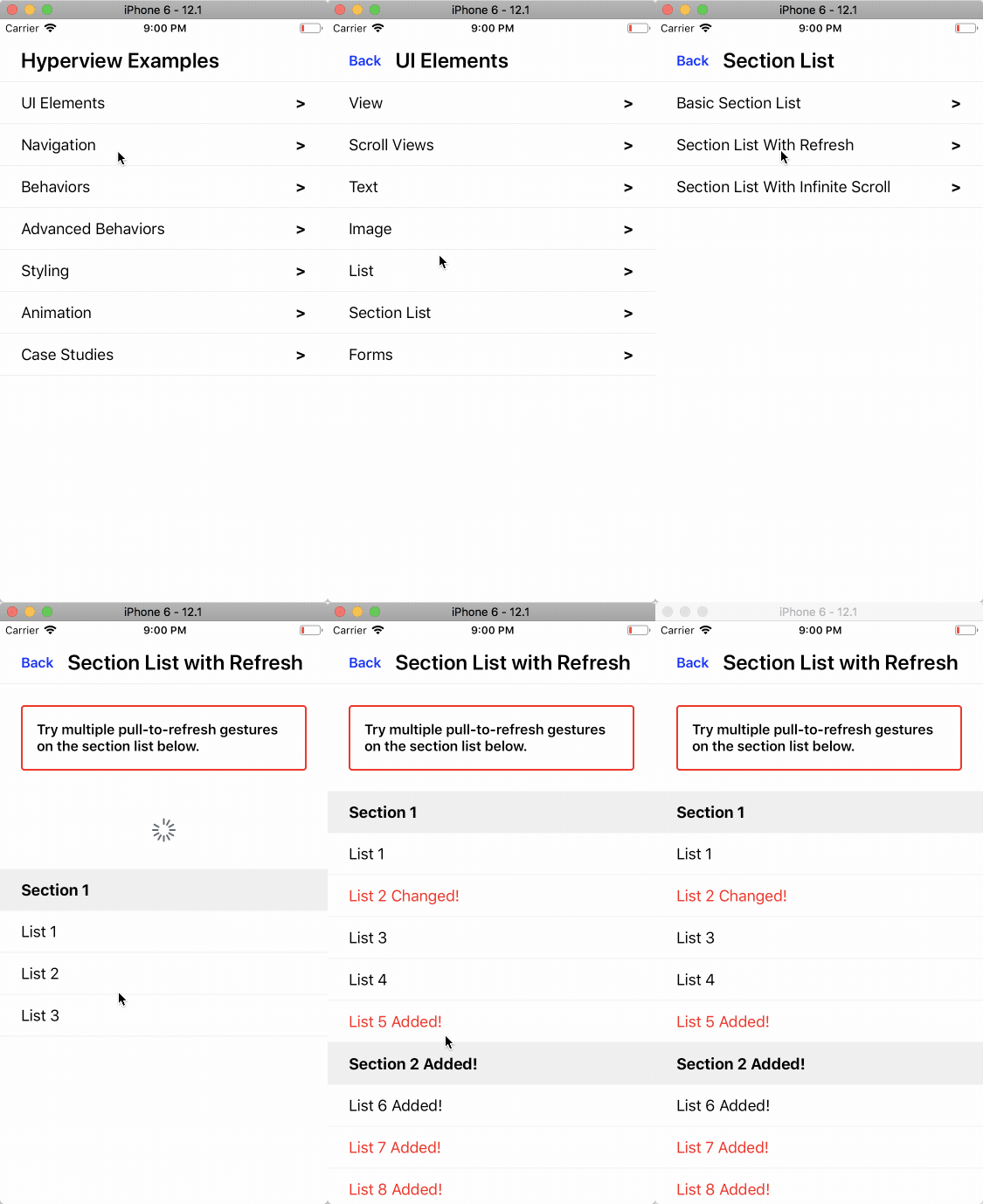
The example server responds with files in the ./examples directory. You can modify or add files in ./examples and the server will update without restarting. to view your changes, simply navigate back to the changed page.
Troubleshooting
If Metro opens Expo Go instead of the Hyperview demo, uninstall Expo Go from the simulator or device and run yarn ios or yarn android again.
Physical iOS device builds require Automatic Signing with a Personal Team in Xcode. A paid Apple Developer account is not required.